Showing posts with label perl. Show all posts

Friday, July 16, 2010

Clearcase: Create A Label with a script

I got tired of looking up how to create a label in the rational documents and rather then going through type explorer, I decided to write up a really quick script. Maybe others will find use in it. Either way if I lose it, it's here for the world to find. It just uses standard commands that are found in the rational cleartool manual.


print "What Vob?";
$vob = <>;
print "What Label?";
$label = <>;
chomp($vob);
chomp($label);
print `cleartool mklbtype -nc $label@\\$vob`;
$asdf = <>;
Now I tried to make it so my context menu would be able to call it, but for some reason I can't make it call my perl script, if anyone has any ideas, please let me know and I'll update.

Tuesday, July 7, 2009

Perl scripting


So I was checking out Daniweb and trying to answer some questions, and I came across this one:
Sort Files by Date

Since I'm slowly learning perl, I thought why not try:
@someData = `command`;

I tried ls -t which happens to be the unix command to list the directory contents in time order.
After some searching for information for a bit about dir so we can see if this works on windows, I found out you can use the dir /od command instead.
From MSDN

Here's the tidbit of code:

@x = `ls -t`;

foreach $x (@x)
{
print $x;
}
$asdf = <>;

The @x holds the return output from the command and the ls -t can be substituted for dir /od on a windows computer.

I then printed each line, which of course can be redirected to a file, or however you wish to use it for handling.

The $asdf = <>; serves as a "pause" in the script so the script doesn't start run and close before you can see anything.

Let me know in the comments if you can run ls -t from your windows computer standard using perl...

Monday, June 29, 2009

Error Checking

I was reading the book Mastering Regular Expressions by O'Reilly (BTW a great book and one I'd like to eventually do a review on), one of the initial topics the author spoke about was using regular expressions to check a file for errors. I liked the idea, but typically again we had to open the command prompt to run it and it was just not as "friendly" as I like things to be.

Onward we look to my context menu "hack". Basically what we'll do is write a perl script that will take whatever file was passed to it check it for errors and then when you want you can close it.

Lets look at our order of events here:
  1. Discuss the script
  2. Point you to the how to add to your context menu (we'll need to use the registry editor since windows doesn't seem to like perl scripts in the file types box)
  3. Try it out!
Script:
if (scalar(@ARGV)>0)
{


$file = @ARGV[0];
print "Testing $
file \n";
}
else

{
print "Please drag the file you would like to see errors in onto the screen\n";
$file = <>;

}

open DATAFILE, "$file" or die "Missing $file file.\n";
open (DATAFILE, $file);
@getData = <DATAFILE>;
close (DATAFILE);
$errors = 0;
$lineNumber = 1;

foreach $inputLine (@
getData)
{
if ($inputLine =~ m/\berror[(s]?\b/i)
{
print "$lineNumber ) $inputLine \n";

$errors++;
}
$lineNumber++;
}

print "Complete!\n$errors Errors found!";
$asdf = <>;


Breaking it down:
if (scalar(@ARGV)>0)
{


$file = @ARGV[0];
print "Testing $file \n";
}

else
{
print "Please drag the file you would like to see errors in onto the
screen\n";
$file = <>;

}


What this line does, is checks to make sure you at least have one argument, if you don't then it waits for you to type a file in that you want to check (or as stated you can drag the file onto the window). If you use an argument we'll print the file (in case you didn't actually type the filename in)

Next,
open DATAFILE, "$file" or die "Missing $file file.\n";
open (DATAFILE,
$file);
@getData = ;
close (DATAFILE);

$errors = 0;
$lineNumber = 1;

Open our file get the contents set our error and linenumber variables to zero.

Almost done:
foreach $inputLine (@getData)
{
if ($inputLine =~ m/\berror[(s]?\b/i)
{
print "$lineNumber ) $inputLine \n";
$errors++;
}

$lineNumber++;
}


This rolls through each line of the file (each line is a different item in the array), checks for words that are error OR errors OR error(, prints that line and then increments our error counter as well as we increment our linenumber variable everytime we move through the array.

Lets look at our Regular Expression:
$inputLine =~ m/\berror[(s]?\b/i


Breaking it down it literally means
match the beginning of a word, if it matches error error( or errors and ends the word and any variation of capitalization we can find we will return a positive match.

This can be modified to work with any kind of error or even any kind of other word you might want to look for in a particular file.

The last 2 lines basically keep the window from closing immediately if you haven't setup your system to keep the window open after running.

Next comes updating our registry to handle this!!! Check out this page, it contains a detailed how to modify our registry to add a command to the context menu.
What we'll be looking for is the txtfile entry.
if there isn't a key for shell add one, then add Check_For_Errors (or insert whatever you want to call it), then add one more key for command. This is the command I stuck in for the REG_SZ:
cmd.exe /k "C:\batch\checkErrors.pl %1"

So what that's going to do is open a command prompt and run the following which happens to be our perl script. just substitute the location where you saved your perl script at.

Lets check it out, I tried the above script on a text file containing this text:
This line contains an error.
if I knew any better there would be no errors in this file.
But unfortunately I will always make some kind of Error.
Now I know this line doesn't contain one.
But this one contains one with a ( like this error(
the only problem we'll run into is if we get errors(
Good luck let me know how well it works out for you.

Monday, June 22, 2009

VB6 Speed Tests I

This will be a multipart series to explain how to do some speed testing/throughput of a program.
So I was thinking about this the other day,I have a few programs that take a little bit to get setup and start running. I found that I would really like to know how long it takes for a particular function to run. In the past I usually just stick a timer of some sort at the beginning and end of a particular function.

This works great for a particular function, but lets say you have a fairly large program and would like a big picture of the times of the entire program?

I got to thinking about it, now the particular version of the code that I wanted to time was actually VB6 code, so I thought "hey I can write a perl program that will just open these files up and add 3 variables in the beginning get the clock count, then move to the end of the function and get the clock count and then print it out to an output file.

So I got going....Follow along if you dare....

So let's work out an algorithm or a set of steps that we are going to attempt to do!
  1. Search for anything in the file that starts with Public/Private Sub/Function
  2. Insert our initialization of our variables and code for getting initial clock time
  3. Search for End/Exit Sub/Function
  4. Insert code to get the last clock value.
  5. Insert code to calculate the diff from the end time-start time
  6. Insert code to print out the value last calculated.
* A catchya I found was that even though I was opening .cls files, there is text at the beginning of the file to I suppose initialize the class as VB is opening, what this amounts to is that you have now stuck a "declaration" before the page was setup, so you'll need to trigger on sticking the code in right after this chunk of "header" data.

So now what we will hopefully have (by this point), will be the times that each function is running, also how many time's it's ran (because EVERY TIME it is ran it will print out a time).

Let's start taking apart this file I wrote up...I'm sure it can be modified to work with most programming languages...but this one will specifically explain for VB6 (possibly working for VB.Net+)

@file_list = <*.cls>; #match the normal cls file extensions

So here we want to get a list of all the .cls files in the folder (since most of my functions are here this is where we'll start anyways!

foreach $file (@file_list) {
open DATAFILE, "$file" or die "Missing $filename file.\n";
open (DATAFILE, $file);
@filenames = ;

close (DATAFILE);

$one = 0;
for( my $n=0; $n < scalar(@filenames); $n++)
{
if ($filenames[$n] =~ m/^\s*(Public|Private) (Function|Sub)/)
{
$one++;
}
}

if ($one > 0)
{
open (OUT, ">$file");
}
else
{


}


So what we've done is we read in each file check to see if there are functions and if there are we open the stream to output our updated file contents to.

The interesting thing to note is that we used a nice regular expression I managed to learn from the regular expression book published by O Reilly, I plan to do a book review on it in the near future,

m/^\s*(Public|Private) (Function|Sub)/

Now the interesting thing to see is that there is always more then one way to do things, and I feel like this looks way better then:
m/^(\s+|)Public Function|^(\s+|)Public Sub|^(\s+|)Private Sub|^(\s+|)Private Function/

So what I am doing is searching for a string starting with none or more spaces containing either public or private, AND either function or sub, the top example shows it much more elegantly.

Stay tuned as I write more follow on posts.

Sunday, June 14, 2009

Random Post: "Handbrake Perl Script"


I have Google Analytics setup on my blog and I can see the keywords that have actually brought people to my site.... I find this interesting and this inspires me...If it's obscure, why not try to "guess" what the person was searching for and then do a post on that subject, if it's pretty straight forward,why not solve it..
Today's keyword subject is : perl script handbrake windows

This one doesn't look too bad.

Per Handbrake.fr's site:
HandBrake is an open-sourced, GPL-Licensed,multiplatform, multithreaded, video transcoder, available for Mac OS X, Linux, and Windows
Looking at the documentation on handbrake's site, there is a command line interface, so we can use that to make any calls to the handbrake program.

The basic command we are going to use would be:
HandBrakeCLI -i source -o destination
So we can immediately start with a perl script like this:
$source = "sourcefile";
$destination = $source . "_converted";
print `HandBrakeCLI -i $source -o $destination`;

This will simply take whatever specified source file we have and output to the destination location.

But if that was all we wanted to do we wouldn't need a perl script would we?

How about if we have a list of files in a document (along with paths)?

We can open that document grab all the paths then simply do a mass conversion!

The final "guess" would simply grab all files of extension x and convert them and dump them in a folder. Again this isn't hard as well.

Lets start with this one, it shouldn't be too bad, of course we'll want to do some error checking, such as if we already have a converted filename of the same type then we definitely want to hold off on converting.
Regardless let's see what we can come up with real quick!
@file_list = <*.mpg *.avi *.vob>;
@converted_list = <*.mp4>;
$extension = ".mp4";
Here we are grabbing a list of all the files we might want to convert, note that you can update that list to contain whatever extensions you might have/like to use. We also grab the list of converted files in there just to do some error checking (in case you leave all your files in the same folder), also the output type should match the type of files you are trying to convert to. We also should define our extension for later use!

Now it's a matter of rolling through each item in the filelist, so we'll start a for loop:
foreach $file (@file_list)
{
@filename = split(/./, $file);
$exists = 0;
}
Something to note is that we want to do a search on the filename in the converted files so in order to do that we'll need to break up the filename from the extension.

Now inside this loop we'll want to do a quick check to see if the file we have a handle on is already listed
foreach $converted (@converted_files)
{
if ($converted =~ m/@filename[0]/i)
{
$exists = 1;
}
$baseName = @filename[0];
}
So now we've done a check and if we have a file that our converted files contains.

What we can now do is make an if/then that will basically skip the file altogether if we see that $exists contains a 1!
if ($exists == 1)
{
print "File already converted!!";
}
else
{
$source = "$file";
$destination = $baseName . "_converted" . $extension;
print `HandBrakeCLI -i $source -o $destination`;

}
Something to remember:
If you want to save to a separate folder I would recommend doing a check for whether that folder exists rather then grabbing a list of files in the current directory.
Entire Script (small text...just copy paste):
@file_list = <*.mpg *.avi *.vob *.AVI>;
@converted_list = <*.mp4>;
$extension = ".mp4";


foreach $file (@file_list)
{
@filename = split(/\./, $file);
$exists = 0;

foreach $converted (@converted_list)
{
if ($converted =~ m/@filename[0]/i)
{
$exists = 1;

}
$baseName = @filename[0];
print @filename[0] . "\n";
}

if ($exists == 1)
{
print "File already converted!!";
}
else
{
print "Converting";
$source = "$file";
$destination = $baseName . "_converted" . $extension;
print "Ready?\n";
$asdf = <>;
print `HandBrakeCLI -i $source -o $destination`;
}
}

The only difference between the above script and one that will open a document and pull all the filenames from it is that you would use the command:

open DATAFILE, "$inputfilename" or die "Missing $inputfilename file.\n"; open (DATAFILE, $inputfilename);
@file_list = ;
close (DATAFILE);
The above would replace the line:
@file_list = <*.mpg *.avi *.vob>;
That's really the only difference!

Well let me know what you think in the comments and if you happen to have found this site looking for just this random post please let me know!!!

Monday, June 8, 2009

Windows Selected Filenames Pt II

Welcome back, well as we all know, in the words of my good friend Phil:
"But with all programming/design problems – there are a multitude of unique methods that may be employed to removed the dermal layer of the felinus domesticus"
If you don't know how to setup a "right click" menu item for files and folders I would recommend checking out the following posts: Windows Selected Filenames, Command Prompt

Lets get on with it, This "version" of the selected filenames will use the same steps to get it up and running, (right click menu), but the only difference is that now when we have our script setup we'll copy the files to the clipboard, then deslect the files and right click on a single filename and select your copy filenames script, Lets get into the meat of this script,

#! perl
use WIN32::CLIPBOARD;

$text = "";
$CLIP = Win32::Clipboard();

if ($CLIP->IsFiles())

{

@files = $CLIP->GetFiles();

foreach $file (@files)

{
@sp = split(/\\/, $file);

$text = $text .$sp[@sp-1] . "\n";
}
$CLIP->Set($text);

}
Breaking it down again:

First we declare:
use WIN32::CLIPBOARD;
This is so we can use Windows Clipboard functions

Next is
$text = "";
We want a clean text string.

Then,
$CLIP = Win32::Clipboard();
Here we setup the $clip as a clipboard object.

Next,
if ($CLIP->IsFiles())
What this is doing is checking that there are "files" in the clipboard, we want this because otherwise we'll try to write "nothing" to the clipboard and I'm sure that's not a problem, but if for some reason you really didn't mean to do this and you already had text in the clipboard then it won't overwrite your text clipboard contents, either way it won't write to the clipboard if you don't have any files in the clipboard, you can remove this if you want but I haven't tested it out, it may work just fine.

Then,
@files = $CLIP->GetFiles();
This chunk of code goes out and gets the files in the clipboard, and stores them in an array.

Next,
foreach $file (@files)
So what we're going to do is run the next couple of lines for each file (or in this case we'll be grabbing the filename)

Then,
@sp = split(/\\/, $file);
This line splits the "filename" up into segments if you were interested in the whole pathname you could omit this step and just assign the $text variable to whatever $text contained and the $file variable plus "\n", so you get each filename on a new line.

Next,
$text = $text .$sp[@sp-1] . "\n";
This takes the split up line above and grabs the last bit of it, which happens to be the actual filename. Remember if you wanted the entire pathname you could use the $file variable like so,
$text = $text . $file . "\n";

Finally,
$CLIP->Set($text);
This line sets your newly created text to the clipboard!

Give it a try and let me know how it works out for you!

I'm sure this isn't the last post about this subject, as always things are always improving, I am constantly thinking of a way to cut back on the amount of steps to run this little "tool" my plan is to eventually "simulate" the keystroke to "copy" the files then copy the filenames, not sure how to go about it, without running multiple instances, I'm sure hotkeys will be a big help on this, either way I'll be improving this script again in the future...Stay tuned I'm certain there will be more posts on getting this working better.

Thursday, May 28, 2009

Windows Selected Filenames

For the longest time I could be in a folder and want to figure out a way to add a set of selected filenames to the clipboard, this might sound easier then it really is, here's my journey.

There are/were 3 barriers for me:
1. I don't know the Windows API verywell, so I can't do it that way (yet)
2. I can't pass multiple filenames to a program (again falling into the "api" factor)
3. Because of # 2, I can't clear the clipboard and then add the item because when the script is ran it will only add the passed in parameter to the clipboard, and since I haven't figured out how to pass multiple filenames via parameters, so we'll have whatever was IN the clipboard remain.

I decided that perl might be a fun way to do this, here is my plan of attack,
1. Create a perl script that takes whatever is passed to it, and adds it to the clipboard (a.k.a appends it).
2. Add this item to the right click menu (similar to the way we added the command line prompts)

Let's get started.

Here is the code I'm using and I'll explain it line by line after:
#! perl use WIN32::CLIPBOARD;
$CLIP = Win32::Clipboard();

@sp = split(/\\/, $ARGV[0]);
$text = $CLIP->Get();
$string = $sp[@sp-1];
$text = $text . "\n" . $string;
$CLIP->Set($text);

First we declare:
use WIN32::CLIPBOARD;

This is so we can use Windows Clipboard functions

Next is
$CLIP = Win32::Clipboard();
Here we setup the $clip as a clipboard object.

Next,
@sp = split(/\\/, $ARGV[0]);

Here we split the passed in parameter (windows passes the entire path to the filename)
up by the \ character.

Next,
$text = $CLIP->Get();
We go get the contents of the clipboard

Next,
$string = $sp[@sp-1];
Here we store off the last item of the split up array which happens to be the filename only, no path.

Next,
$text = $text . "\n" . $string;
Here we append the filename to the original clipboard contents.

Finally
$CLIP->Set($text);
This is the last line, and all it does is take the text string we created by appending our filename to the original contents, and sets it to the clipboard.

Now what I have been doing is starting a folder on my C drive called batch that I stick all my context menu executable items.

Finally we'll follow the steps outlined in Command Prompt to add the selection to a folder
1. Open an explorer window, this can be accomplished by either pressing "Windows key + E" or just opening a folder.
2. Select Tools Folder Options,
3. Click the Tab File Types
4. Select Folder
5. Select Advanced
6. Select New
7. For Action name, Just name it something you'll remember like "Copy Filenames"
8. For the application used to perform this action enter the path to your perl script you created above
9. Select Ok's to exit.
10. Try it out, now go to a folder and right click on it and select whatever you named your action.

Now in order to see it show up on ALL files, you will need to do a bit of Registry editing,
Here's the steps:
1. Windows key + r (Or just get to the run dialog using start then run)
2. type in regedit and hit enter
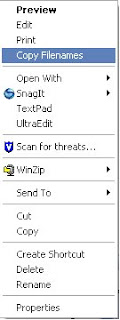
3. Save your current registry (in case you mess up) by using export under the file menu.
4. Navigate to HKEY_CLASSES_ROOT
5. The first entry is *,expand this
6. If there is a folder called shell expand it, if not you can create one by right clicking on the * folder and selecting New then Key, make sure to name it shell.
7. On the shell folder right click and select New then Key, Name it whatever you called your action in the previous step for folders.
8. On the folder you just created add a new key once more and call it command.
9. Now in the right side of the window edit the (default) item by double clicking on it,
10. Enter in cmd /c %1
(Mine looks like this:
cmd /c c:\batch\filelisting_selection.pl %1)
11. Click ok, and you have updated your registry


Try it out now!

Limitations:
1. If you select LOTS of items and try to add it, you could run into problems because windows will have to start one instance for each file, this works great for 0-20ish files, once you start getting higher, windows will ask you if you're sure that you want to do this.

2. Also I have run into the problem if I have a folder selected AND a file selected the tool will only add one or the other to the clipboard, haven't quite figured that one out either.


If you have any other ideas on how to implement this let me know, I couldn't seem to find this anywhere on the net but who knows, maybe someone has posted it somewhere, and I have yet to find it, either way leave a comment and let me know how it works.

UPDATE:
No sooner then after having this little "trick" in my bag for a couple months and FINALLY posting about it, do I find an alternate way to do this that might work alot better, it won't open numerous instances of the program so it'll be alot quicker. I'll post an "updated" post in the near future once i work all the bugs out.

UPDATE II:You can now check it out here

Wednesday, May 6, 2009

Batch Scripts Perl scripts and Bears Oh My!!!

I don't know but maybe I'm the only one who has these problems but I don't know how many times I'll run a batch script and find that it's managed to start run and close before I even saw the screen come up, now of course you can get around this by putting a pause in your script, but honestly I don't always want to pause I just want to see that it successfully completed and not wait for me to hit enter.

One way to work around this is by following this steps:

Purpose: The point of this is to make the window stay open when you run a batch file.
  1. Windows Key + R
  2. type regedit in the window
  3. Back up Registry
    1. File
    2. Export>
    3. Save somewhere you can find it in case you need to revert
  4. Click the Plus sign next to HKEY_CLASSES_ROOT
  5. scroll to batfile
  6. Click the little plus next to it
  7. Click the little plus next to shell
  8. Click the little plus next to open
  9. Click the folder command
  10. For the REG_SZ on the right window double click the (Default)
  11. Make sure the string looks like this:
    • "cmd.exe" /k "%1" %*


Now to explain, what I have set it to do is to basically keep the window open after running so you are returned to a command prompt.

Another place I find this to be very helpful is for example if you're using perl scripts right?

How many times do you run a perl script (to test) just by double clicking on it, and it opens calls an error and closes before you get a chance to even look at it?

Almost all the same steps as you'll see:
  1. Windows Key + R
  2. type regedit in the window
  3. Back up Registry
    1. File
    2. Export>
    3. Save somewhere you can find it in case you need to revert
  4. Click the Plus sign next to HKEY_CLASSES_ROOT
  5. scroll to Perl
  6. Click the little plus next to it
  7. Click the little plus next to shell
  8. Click the little plus next to open
  9. Click the folder command
  10. For the REG_SZ on the right window double click the (Default)
  11. Make sure the string looks like this:
    • "cmd.exe" /k "perl %1" %*
Of course yours may have looked a little different BEFORE but in order to enable the window to stay open when you run the script you basically use the same thing what we're saying is open a command prompt (and stay open), /k says "run the following command" which happens to be the perl %1 and as a reminder the %1 is a parameter passing in what was called to it.

The beauty of this is it can be applied to almost any script/exe etc. additionally you could add other arguments, for example if you want your perl scripts to always run in "debug" mode to give you the most information when you run a script (in case it fails) that would be a -w right in front of the %1:
  • "cmd.exe" /k "perl -w %1" %*
I hope you enjoyed and let me know how it works for you!!!