Digital Rights Management isn't new. It's been around for a while (wow, the late 90's, http://en.wikipedia.org/wiki/Digital_rights_management), and while back in the early 2000's the concept of controlling media was the idea, in practice it's not something that was managable, however with each and every iteration of technology creeping into our lives, the stranglehold gets easier and easier to maintain. This piece is spawned from this article http://boingboing.net/2013/12/15/amazon-takes-away-access-to-pu.html). Lets begin.
Slowly my eyes begin to adjust, my alarm didn't go off. I look at my phone, oh I guess I was wrong, turns out for some reason the Beastie Boys didn't appreciate that I woke up to them, so they revoked my rights to listen to their music as an alarm. Whatever, I stand up walk to the bathroom and begin getting ready. I finish up head to the kitchen and get ready to check the news. Today feels like it's going to be rough. I check my news reader app, weird, something wrong with my account, I don't feel like messing with it. The news is depressing anyways. I look up some recipes and download them to my 3D printer. Pancakes and syrup sound nice. I finish up breakfast and head into work.
I sit down at my desk and turn on my monitors and computer. I wait for it to boot, the camera takes a snapshot and see's it's me, it proceeds to load some advertisements while I wait for the computer to boot (how nice). I work for a while go to lunch and come back. Once the computer attempts to login I'm told that the license for my OS is out of date and I need to pay to renew it. Bleh, call up Ted, "Ted, license is expired again, can you renew it for me?". "No can do, I guess our word processor got too popular, they refuse to re-license our PC's" said Ted. "Wait, are they legally allowed to do that? I mean isn't that a monopoly or something?" I asked. "Nope, we're free to compete, but we just can't use their products to compete, so no monopoly, although it looks like we'll have to start over if we want to continue, since we can't get into the PC's for the source code and the hard drives are encrypted." Ted explained, "I think I'm going to pack up and go home, you might want to do the same, nothing for us to do here". "Better update my resume" mutters Ted as he walks out the door.
Slowly I pack my things and walk out the door, as I climb into my car and tell it to drive me home, I ponder why we decided to develop on that OS. In fact I begin to ponder a lot of things. Why can't I listen to Beastie Boys whenever I want to? Why can't I just read the news? Why can't I just use the PC and the Operating System that I paid for? My head is hurting, I reach for an aspirin and look out the window. "Wait, this isn't the right way home". "Where are we going?". "Back to the dealership, I'm afraid they caught wind that the store shutdown, and they're revoking your lease" rattles off the car. We arrive, I guess I have to walk home, it's only 10 blocks better get going before it gets dark. I head home.
Exhausted I walk in the door and decide that tonight I need a break, I've been working a lot of overtime to get our app out the door. Tonight I am going to relax. I look up the spaghetti and meatballs recipe I bought a few months back, and program my printer to make it. I walk to the living room and turn on the television. I scroll through looking for the Sherlock Holmes Series I bought last month digitally but never got around to watching. I can't find it. I call up tech support, and I'm told that the new Sherlock Holmes is on The Onion, and since they own the original they decided that their customers should really be watching the new Sherlock Holmes when it's on, not the older Sherlock Holmes. "Great, so I can't watch it even though I bought it?". "Nope" replied the tech. No apologies, like I'm expected to know this. I hang up in frustration, walk out to kitchen to grab my food and find that there is no food printed. I check the display, "Two options available Sherlock Holmes Bangers and Mash, Sherlock Holmes Fish and Chips", I call up tech support for my printer. "Hello, I am trying to print out some spaghetti and meatballs, there appears to be some kind of error on my printer", "Let me take a look real quick, it says here that you're planning on watching Sherlock Holmes tonight, is that correct?" "I was planning on watching the old Sherlock Holmes, but I'm not allowed to", "So you'll be watching the new one?", "No, I just wanted to eat and go to bed", "I'm sorry but The Onion has paid for advertising at this time, we'll only be able to make those two items, until 9pm after that you can cook whatever you want again". "Are you kidding me? I can't even cook what I want to eat, with food that I already paid for with a recipe I already paid for?", "Nope", I hang up irate.
All the things start small, DRM to protect the copyright owner from losing revenue by pirating. A little leeway for a corporation here, a little leeway there. Initially DRM was a nuisance, but not a big deal. When DRM was on DVD's corporations would have to chase down every person that bought a DVD and take it back (if they really wanted to recall their product). When these laws were first enacted, not many of us could have even envisioned corporation X stopping by our house and saying "I want my DVD back". We all just laughed it off, and didn't worry about it. As we move to digital content, it's easy to realize that with the click of a mouse everything you "lease" can be taken away from you. I will never buy a Movie, Song, or other digital relic, as long as someone somewhere can type a few words and take it all away. This needs to stop. Refuse to buy anything digital that contains DRM. Start making companies that compete with these companies, and offer DRM free. Show the world and these corporations that we refuse to sit down and take what we're given. They have the right to put DRM on any and all of their products, but we have the right to not buy it. We have the right to produce works of art that aren't taken away from the world at the whim of a president of a company.
Showing posts with label Movies. Show all posts
Showing posts with label Movies. Show all posts
Monday, December 16, 2013
Saturday, June 6, 2009
Server Part II
Continuing from our previous post: Server Part 1
Review:
1. Download and burn Discs
2. Setup Harddrives
Ok time to get started...
1. Download and burn an ISO of the Server Ubuntu 9.04 Server Edition
2. I was having some problems installing so I decided that rather then chance losing data, I unplugged all the hard drives on my server leaving ONLY the HDD that I intend to install the software on.
3. Boot to the ISO burned in step 1.
4. Follow the prompts, I was fine with letting the disk setup the entire thing, just select the defaults (If you have different preferences make the changes as needed).

5. When you reach the point where you choose what kind of server you want I selected Samba Server.
6. Once it's done try rebooting (without the Server Install disk in the cdrom drive) and see if it comes up, if it does, great, continue on then.
7. Shutdown your system.
8. Plug your hard drives in and try booting, if it comes up you've just had an even Greater Success, you don't have to do anything with your bios (from my perspective), and you can just wait until the next post in the series. Otherwise if you get a Grub error 21 like mine continue to the next step
9. If you have problems like I did, you need to get into bios and rearrange the boot order of the drives, what you'll find is that the boot loader (Grub), will be loaded on the drive (In my case it was /dev/sdc), but when the computer trys to boot it trys to boot to /dev/sda which doesn't have a bootloader, so by moving the disk boot order it can find it and you'll get a successful boot.
10. Next up we'll be installing all the software that we need to setup a LAMP
server as well as our Samba Server, and some things that you need in order to update your server from your laptop in the living room....SSH!!!
Good luck and let me know how it works out. If you have any problems go ahead and post and I'll try to see if I can help!
Review:
1. Download and burn Discs
2. Setup Harddrives
Ok time to get started...
1. Download and burn an ISO of the Server Ubuntu 9.04 Server Edition
2. I was having some problems installing so I decided that rather then chance losing data, I unplugged all the hard drives on my server leaving ONLY the HDD that I intend to install the software on.
3. Boot to the ISO burned in step 1.
4. Follow the prompts, I was fine with letting the disk setup the entire thing, just select the defaults (If you have different preferences make the changes as needed).
5. When you reach the point where you choose what kind of server you want I selected Samba Server.
6. Once it's done try rebooting (without the Server Install disk in the cdrom drive) and see if it comes up, if it does, great, continue on then.
7. Shutdown your system.
8. Plug your hard drives in and try booting, if it comes up you've just had an even Greater Success, you don't have to do anything with your bios (from my perspective), and you can just wait until the next post in the series. Otherwise if you get a Grub error 21 like mine continue to the next step
9. If you have problems like I did, you need to get into bios and rearrange the boot order of the drives, what you'll find is that the boot loader (Grub), will be loaded on the drive (In my case it was /dev/sdc), but when the computer trys to boot it trys to boot to /dev/sda which doesn't have a bootloader, so by moving the disk boot order it can find it and you'll get a successful boot.
10. Next up we'll be installing all the software that we need to setup a LAMP
server as well as our Samba Server, and some things that you need in order to update your server from your laptop in the living room....SSH!!!
Good luck and let me know how it works out. If you have any problems go ahead and post and I'll try to see if I can help!


Wednesday, May 27, 2009
Server Part 1
This will be a multipart post on setting up my Media/Web server.
Today's post will contain details on prepping for the actual installation.
First I downloaded the KDE (I have been fond of KDE lately), Ubuntu flavor called Kubuntu you can find it here: Kubuntu Live CD On the left hand side it has the option to download. Once you have the ISO downloaded, burn it as an Image to a disc.
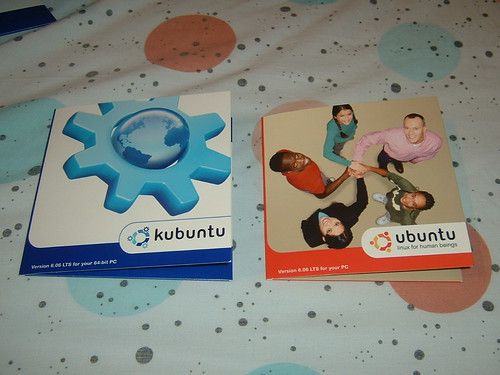
Then setup your computer to boot to CD first, then boot into your linux.
Second I plugged in all my drives I planned on using into my server and formatted them, I used this page as a reference Ehow Format a Hard Drive in Linux
**Note Formatting will destroy all data on a disk, I didn't try it but I imagine that re-partitioning could potentially cause problems as well, so make sure your data is all backed up on a drive you aren't formatting or re-partitioning.
First open a terminal.
First I deleted all the partitions using fdisk, then created a new partition (only one partition per disc for my setup is what I decided), I setup the partition type (I simply followed the instructions on the linked page and used EXT2).
Here's the commands I used:
sudo fdisk -l
This will give you a listing of all the drives attached as well as partitions,
You'll note that some drives will show /dev/hdx, and some will show /dev/sdx, depending on the number of drives you have installed, in my case I have 3 drives so I'll be doing the follwing steps 3 times one for each in my case I had /dev/sda, /sdb, and /sdc.
I started with /dev/sda so my next command was:
sudo fdisk /dev/sda
This starts up fdisk and tells it we are working on the sda drive.
Depending on how many partitions you have you may need to take a few steps here, but in my case I only had one partition so I simply typed d and hit enter and it deleted my only partition, if you have multiple partitions you would be asked which partition to do, once you are down to one partition it won't ask anymore it assumes that it is supposed to delete the last partition.
Next I typed n, after this fdisk will ask you what kind of partition this is, In my case it's a primary partition, so I typed p, After that I simply left the defaults, here you can setup the size of your partition, if you plan on using multiple partitions, then you would specify the sizes you would like, but since i only want one partition I just left them all default by hitting enter at each prompt.
Next we'll setup what kind of partition this will be, type a t, now it will ask you what kind, I used 83, This is a standard linux partition, there are other ones such as ext3, ntfs, fat16 etc, these can be shown by typing an L, if for some reason you don't want to use 83, just type the number of the partition type you do want.
Finally we'll write the partition out, by typing a w this will write out all our changes to the disk, up until this point you can cancel what you had done by just backing out, but now you've written
to the disk and things are final,
Next we'll Make the file system using mkfs.
our next command will be
sudo mkfs -t ext2 /dev/sda1
What we're doing is running the tool mkfs (which I believe stands for make filesystem), and telling it that the type (-t) is ext2 and telling it which drive to do it to, since I only have one partition I would use /dev/sda1, if you have multiple partitions you would use your applicable one in this case as well. Also if you used a different filesystem then ext2 you would specify it as well.
This will take a little while depending on the size of your drive, my 250GB drive didn't take too long, maybe 5-10 minutes.
Finally we are ready to format our drive using the command:
sudo fsck -f -y /dev/sda1
What this commad does is run File System Check the option -y will attempt to fix any problems (info found here).
What -f means is that it does a "fast check", if you have had disk problems in the past you may want to leave this off and let it do a thourough check. (info found here)
Now you just repeat each of the steps for each drive!!!
Tune in when I install the Ubuntu Server Edition!!!
Links used:
http://blog.diyersitzone.net/2009/03/30/how-to-repair-a-corrupted-filesystem-in-ubuntu/
http://manpages.ubuntu.com/manpages/hardy/man8/fsck.8.html
http://www.ehow.com/how_1000631_hard-drive-linux.html
http://www.kubuntu.org/
Today's post will contain details on prepping for the actual installation.
First I downloaded the KDE (I have been fond of KDE lately), Ubuntu flavor called Kubuntu you can find it here: Kubuntu Live CD On the left hand side it has the option to download. Once you have the ISO downloaded, burn it as an Image to a disc.
Then setup your computer to boot to CD first, then boot into your linux.
Second I plugged in all my drives I planned on using into my server and formatted them, I used this page as a reference Ehow Format a Hard Drive in Linux
**Note Formatting will destroy all data on a disk, I didn't try it but I imagine that re-partitioning could potentially cause problems as well, so make sure your data is all backed up on a drive you aren't formatting or re-partitioning.
First open a terminal.
First I deleted all the partitions using fdisk, then created a new partition (only one partition per disc for my setup is what I decided), I setup the partition type (I simply followed the instructions on the linked page and used EXT2).
Here's the commands I used:
sudo fdisk -l
This will give you a listing of all the drives attached as well as partitions,
You'll note that some drives will show /dev/hdx, and some will show /dev/sdx, depending on the number of drives you have installed, in my case I have 3 drives so I'll be doing the follwing steps 3 times one for each in my case I had /dev/sda, /sdb, and /sdc.
I started with /dev/sda so my next command was:
sudo fdisk /dev/sda
This starts up fdisk and tells it we are working on the sda drive.
Depending on how many partitions you have you may need to take a few steps here, but in my case I only had one partition so I simply typed d and hit enter and it deleted my only partition, if you have multiple partitions you would be asked which partition to do, once you are down to one partition it won't ask anymore it assumes that it is supposed to delete the last partition.
Next I typed n, after this fdisk will ask you what kind of partition this is, In my case it's a primary partition, so I typed p, After that I simply left the defaults, here you can setup the size of your partition, if you plan on using multiple partitions, then you would specify the sizes you would like, but since i only want one partition I just left them all default by hitting enter at each prompt.
Next we'll setup what kind of partition this will be, type a t, now it will ask you what kind, I used 83, This is a standard linux partition, there are other ones such as ext3, ntfs, fat16 etc, these can be shown by typing an L, if for some reason you don't want to use 83, just type the number of the partition type you do want.
Finally we'll write the partition out, by typing a w this will write out all our changes to the disk, up until this point you can cancel what you had done by just backing out, but now you've written
to the disk and things are final,
Next we'll Make the file system using mkfs.
our next command will be
sudo mkfs -t ext2 /dev/sda1
What we're doing is running the tool mkfs (which I believe stands for make filesystem), and telling it that the type (-t) is ext2 and telling it which drive to do it to, since I only have one partition I would use /dev/sda1, if you have multiple partitions you would use your applicable one in this case as well. Also if you used a different filesystem then ext2 you would specify it as well.
This will take a little while depending on the size of your drive, my 250GB drive didn't take too long, maybe 5-10 minutes.
Finally we are ready to format our drive using the command:
sudo fsck -f -y /dev/sda1
What this commad does is run File System Check the option -y will attempt to fix any problems (info found here).
What -f means is that it does a "fast check", if you have had disk problems in the past you may want to leave this off and let it do a thourough check. (info found here)
Now you just repeat each of the steps for each drive!!!
Tune in when I install the Ubuntu Server Edition!!!
Links used:
http://blog.diyersitzone.net/2009/03/30/how-to-repair-a-corrupted-filesystem-in-ubuntu/
http://manpages.ubuntu.com/manpages/hardy/man8/fsck.8.html
http://www.ehow.com/how_1000631_hard-drive-linux.html
http://www.kubuntu.org/
Subscribe to:
Posts (Atom)